 Bartr
Bartr1. Three ways to start
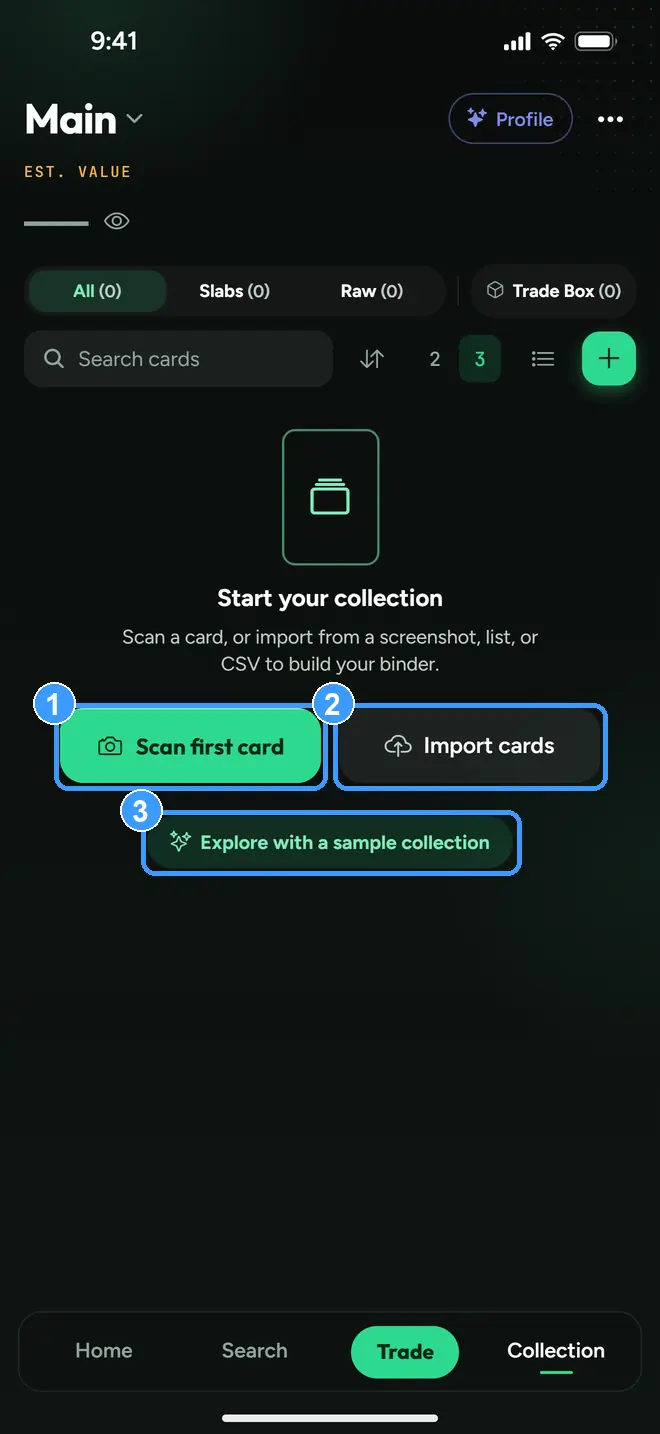
A new install usually opens with a sample collection already loaded. An empty Collection offers Scan first card (1), Import cards (2) from another app, or Explore with a sample collection (3), practice cards that clear automatically the moment your first real card arrives.
2. Add from any card page
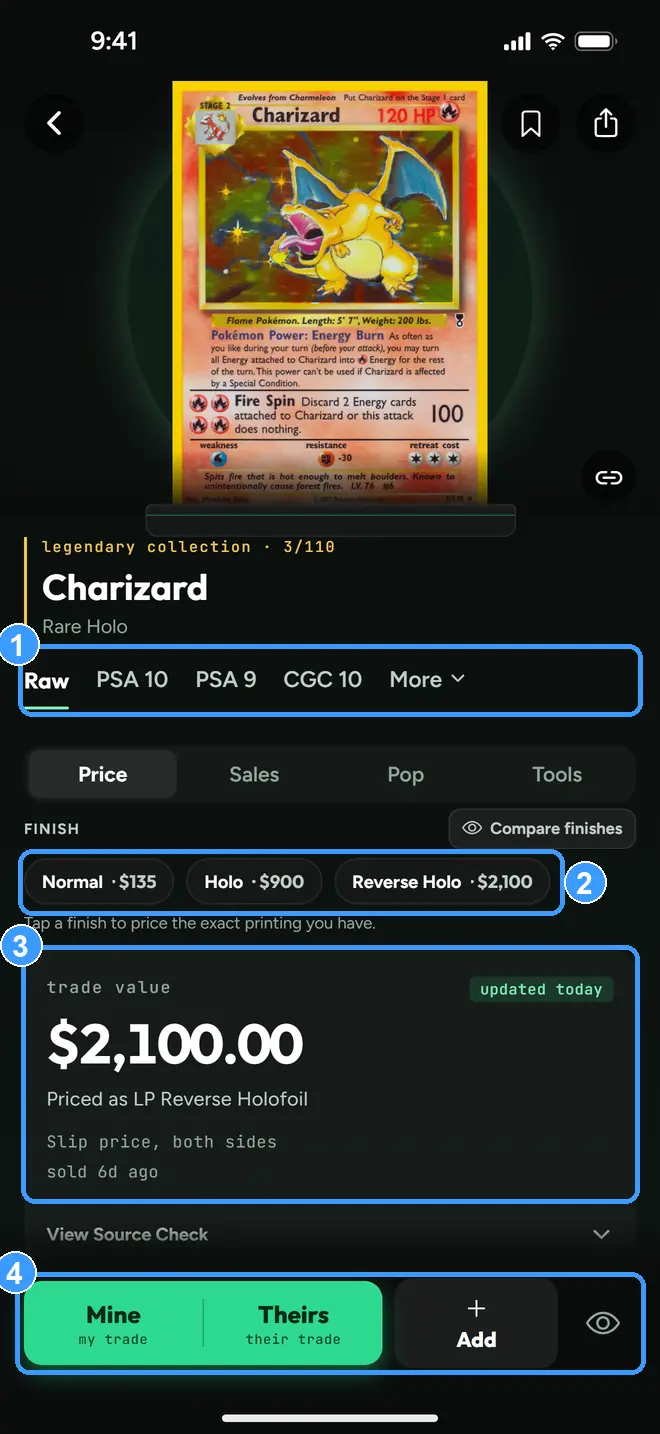
Open any card from Search or a scan. The grade chips (1) switch the price between Raw and graded copies, and the finish chips (2) price each exact printing. In this shot the same Charizard is $135 as a Normal, $900 as a Holo, and $2,100 as a Reverse Holo, which is why Bartr always asks which one you own. The trade value block (3) shows the price for the copy you have selected, dated to when it was updated. Add in the bottom bar (4) puts the card in your collection with that grade and printing; Mine and Theirs put it on either side of a trade, and the eye opens Watch.
3. Read the grid
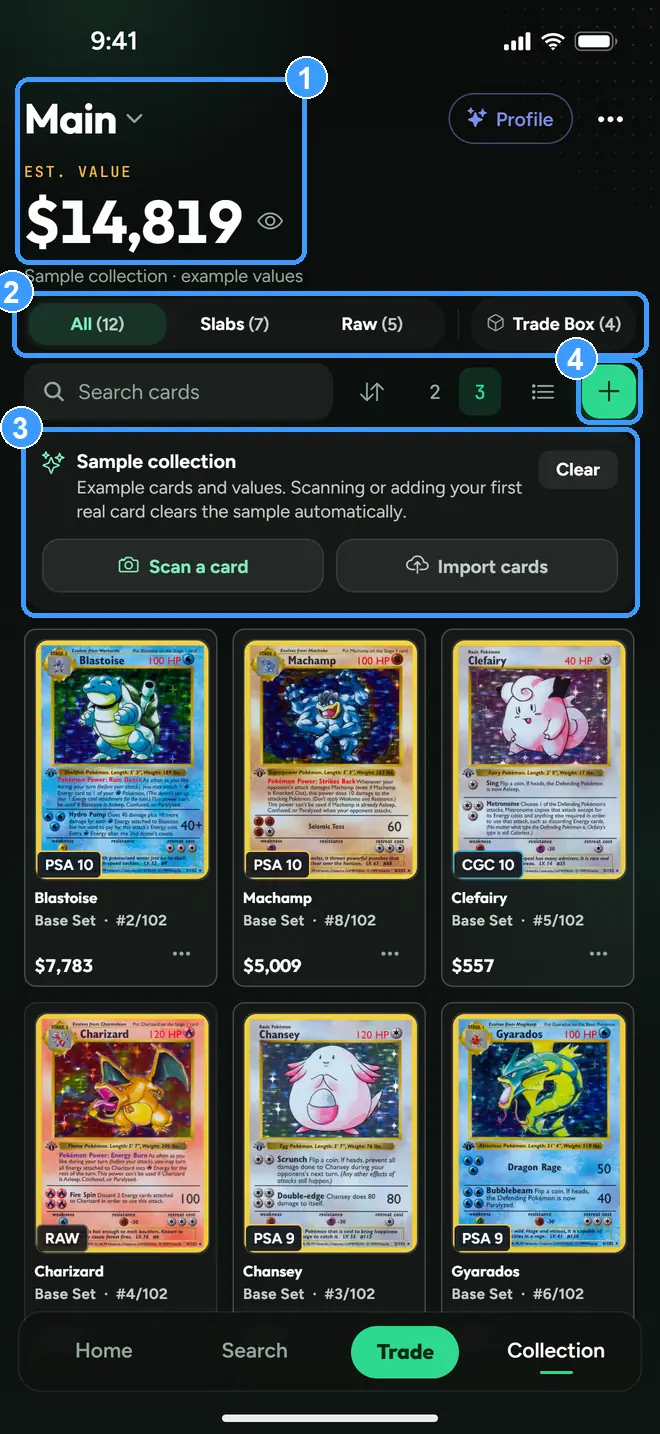
The header (1) is your collection's name and total value, tap the name to switch collections. Filter chips (2) cut the grid to slabs, raw cards, or your Trade Box. This capture has the sample collection loaded, and the app says so on screen (3): those values are labeled example values, not market claims. The plus button (4) adds cards by scan, catalog search, sealed product, or import. Long-press any card for Quick Look.
4. Quick Look and card actions
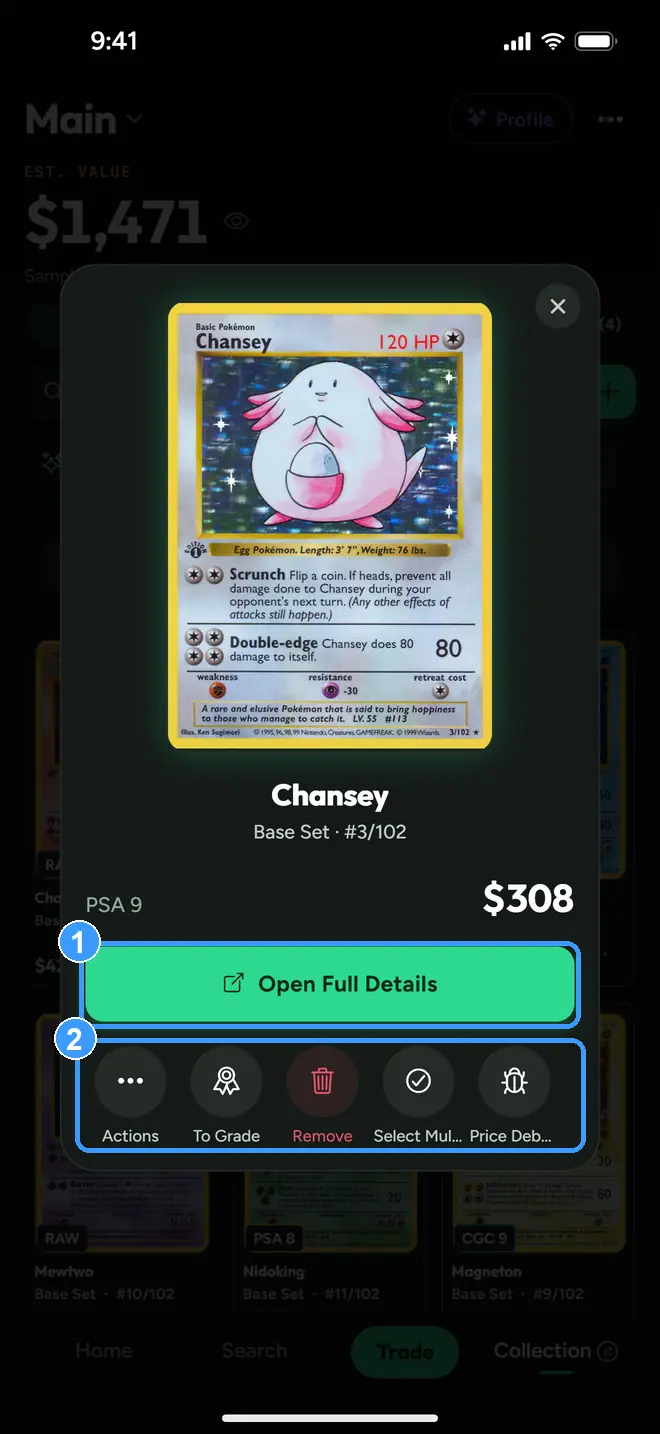
Long-press a card in the grid: Open Full Details (1) jumps to the card page, and the actions row (2) covers the rest, mark it To Grade, remove the copy, select multiple cards, check how its price was built with Price Debug, or add it to your Want List. Actions holds the rest.
5. Import your collection
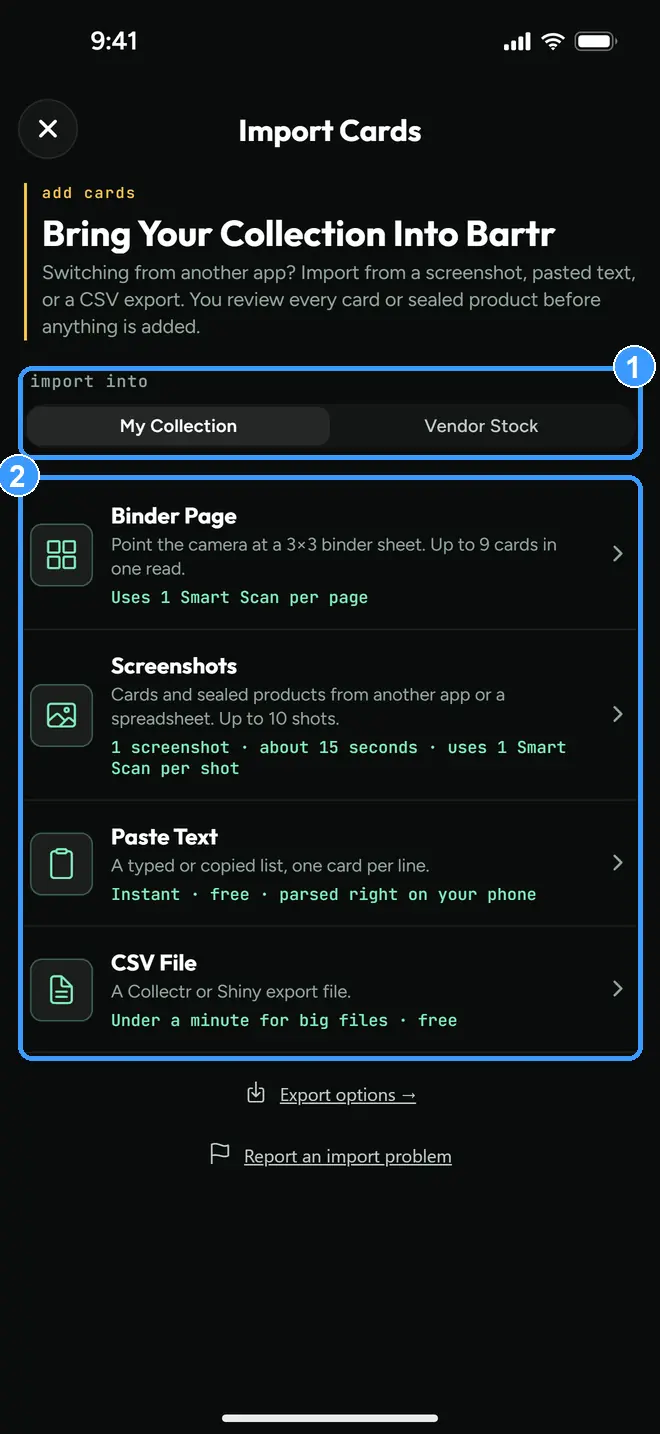
Tap Import cards on Collection, or Import your collection in Profile. Pick where cards land, your collection or vendor stock (1), then pick a method (2): a photo of a binder page, screenshots from another app, pasted text, or a CSV export. Every import shows you each card for review before anything is added.
Every screenshot above comes straight from the app. Get the app to follow along on your own phone, or try the trade calculator in your browser first. Neither needs an account.