 Bartr
Bartr1. Open the scanner
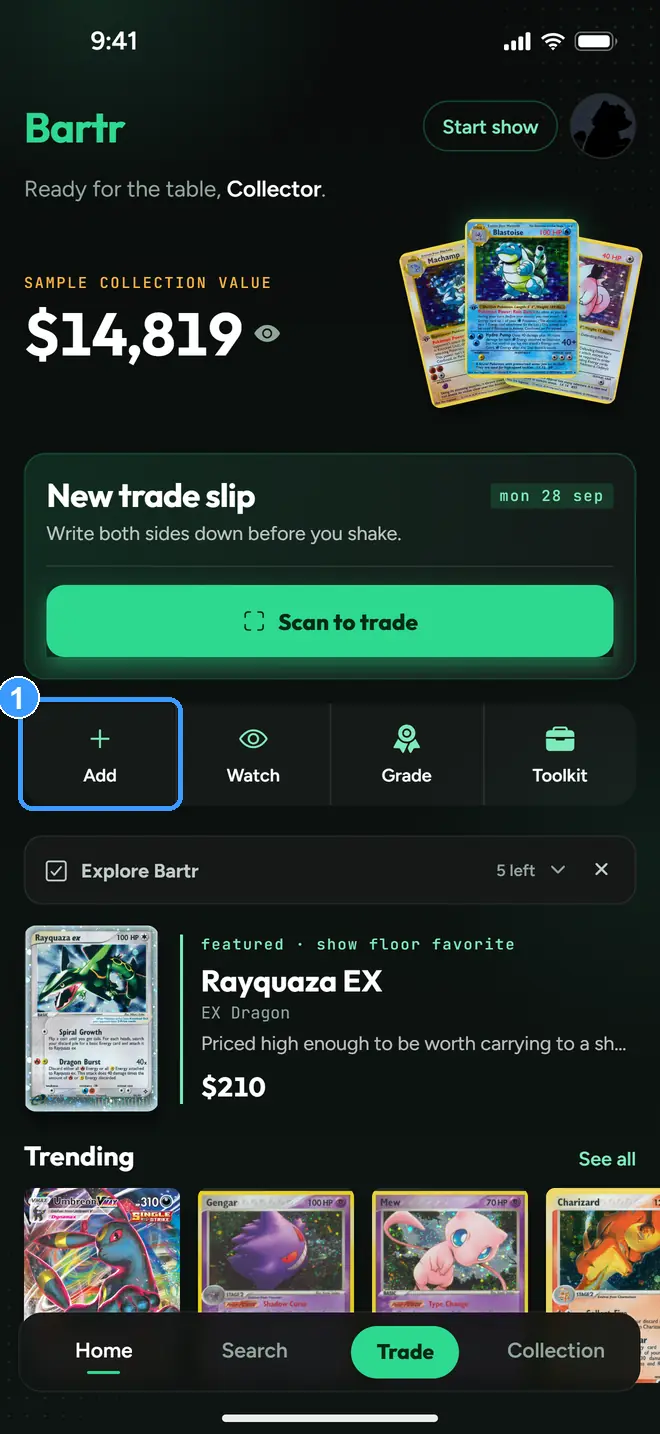
On Home, tap Add (1), the first of the four tiles under the trade slip. Every way of scanning in this guide starts from the same menu.
2. Pick how you want to add
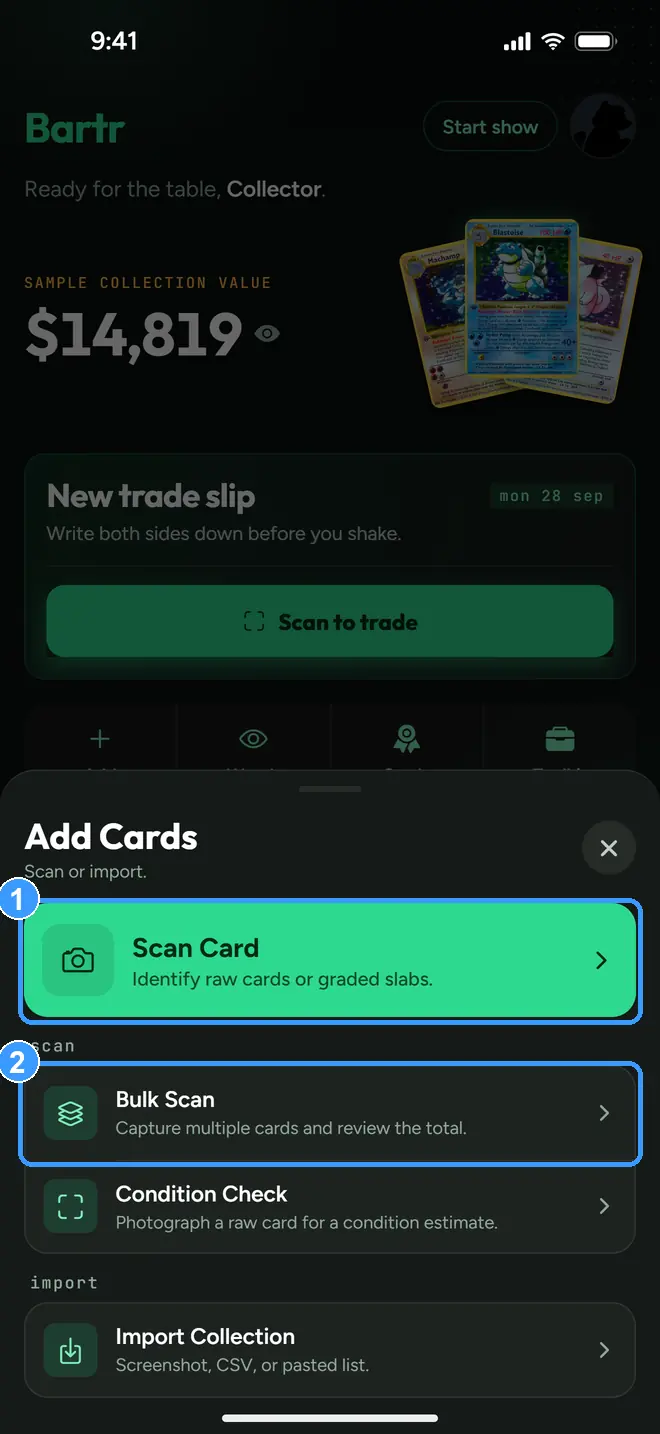
Scan Card (1) identifies one card at a time. Bulk Scan (2) captures a stack in sequence and keeps a running total. The same menu also offers Condition Check and Import Collection. To type a card instead, use the Search tab.
3. Frame the card and shoot
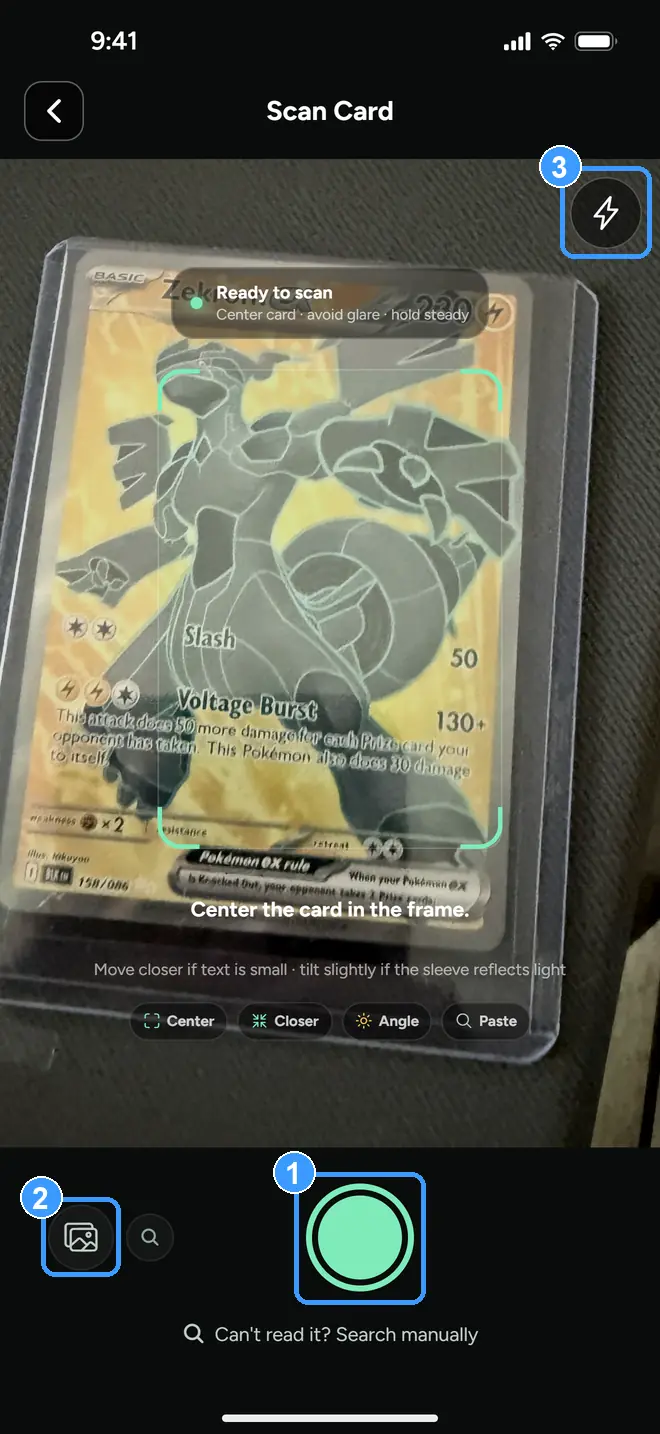
Center the card inside the green corners and tap the shutter (1). The tips on screen are real: move closer if the text is small, and tilt slightly if a sleeve or slab is reflecting light. No card in hand? The gallery button (2) scans a photo you already took. The flash toggle (3) helps in dim convention halls.
The card in this camera view is a real phone photo. A graded slab scans just like a raw card, and Bartr reads the label too.
4. Read the result
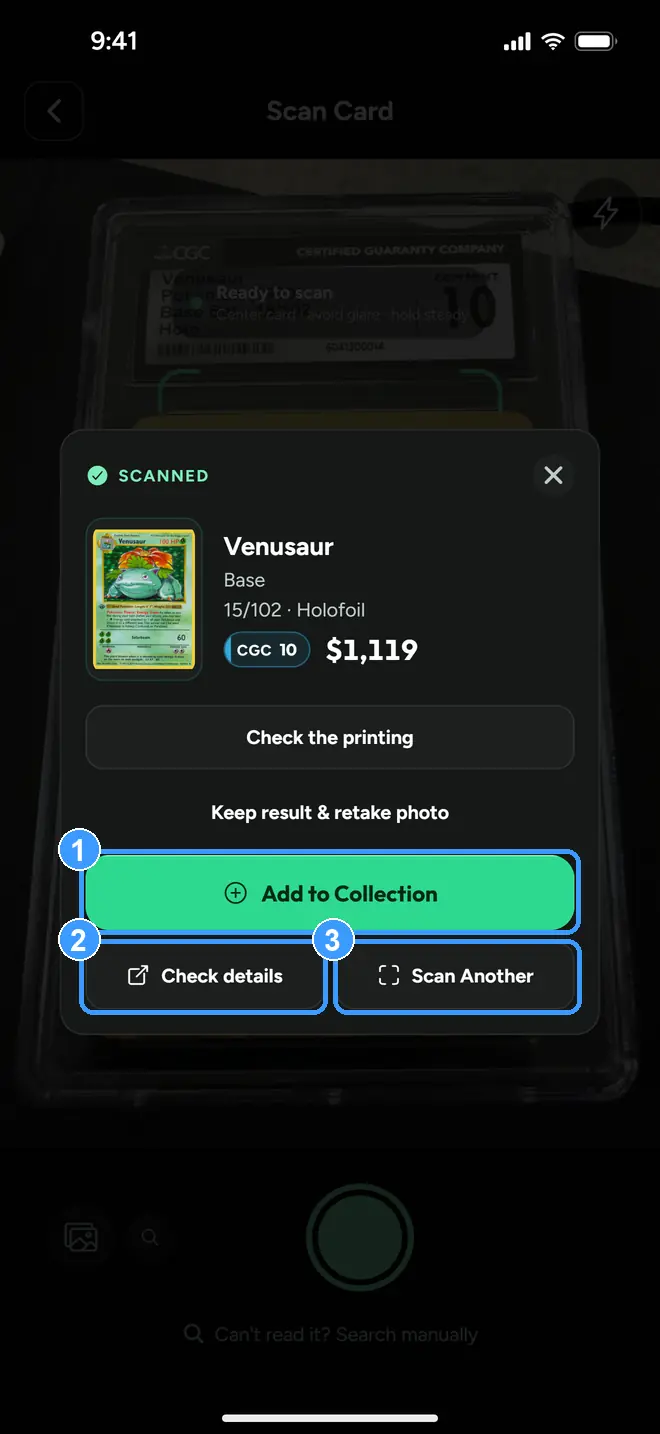
A green Scanned card means Bartr matched one exact card and shows the price it found, here a Base Set Venusaur in a CGC 10 slab at $1,119. From here: Add to Collection (1), Check details (2) for the full card page, or Scan Another (3) to keep going, which stacks scans into a bulk batch. Check the printing compares the printing against your photo first if you want to be sure.
What "Needs Review" means
When Bartr is not sure it matched the right card, it does not guess. You get a review picker, a small grid of candidate cards, and you tap the one in your hand. In a bulk batch the same idea shows up as a Needs Review tag on that scan, next to Matched for the sure ones and Failed for photos it could not read at all. Picking the right card takes one tap and teaches the price to the whole batch.
5. Bulk Scan review
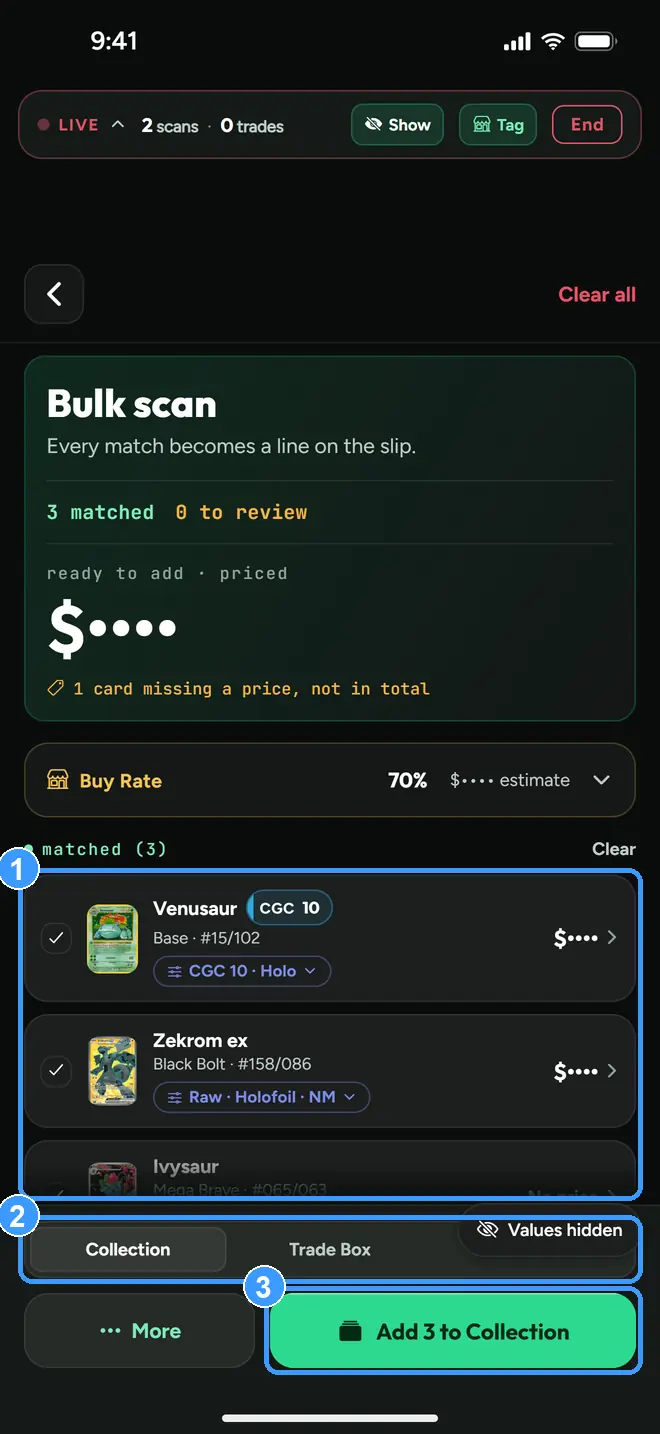
After a bulk run you land on the review screen. Check the matched list (1), pick where the cards go, straight to Collection or your Trade Box (2), plus the Live Trade when you have one open, then add them all in one tap (3).
Two honest details worth noticing in this shot: the totals are masked because it was taken during Show Mode with Privacy Mode on, and the yellow chip calls out a card that has no solid price yet, which is left out of the total instead of being guessed at.
Every screenshot above comes straight from the app. Get the app to follow along on your own phone, or try the trade calculator in your browser first. Neither needs an account.