
Short version: Scan a card to see what it is and what it sells for. Put cards you want on the Watchlist with a target price. Check trades on the Trade screen before you agree. When you go to a card show, mark yourself going in Shows and see who has your wants.
Bartr is built for the card show table. Here is each part, in the order most people use them.
Scan and price
Tap Scan and point the camera at a card, raw or in a slab. Bartr finds the card and shows a market price for that exact printing and grade, with the date it is from. When it is not sure which card it is, it asks you to pick rather than guess, and when there is no solid price it shows none. Scan many cards in a row with Many. How Bartr prices cards explains where the numbers come from, and the scan guide goes step by step. Without the app, you can look a card up on the Pokémon card price pages here.
Watchlist
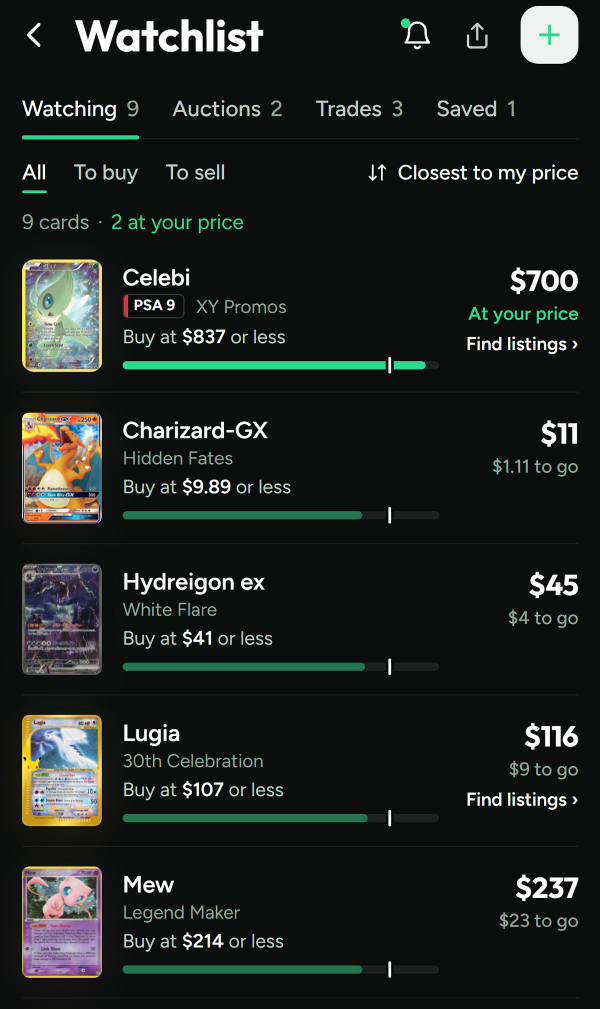
The Watchlist is for cards you want to buy or sell. Give each one a target price: the most you would pay, or the least you would sell for. The list sorts so the cards closest to your price come first, and each row says At your price or how far it has to go. Prices are checked when you open Bartr.
Trade
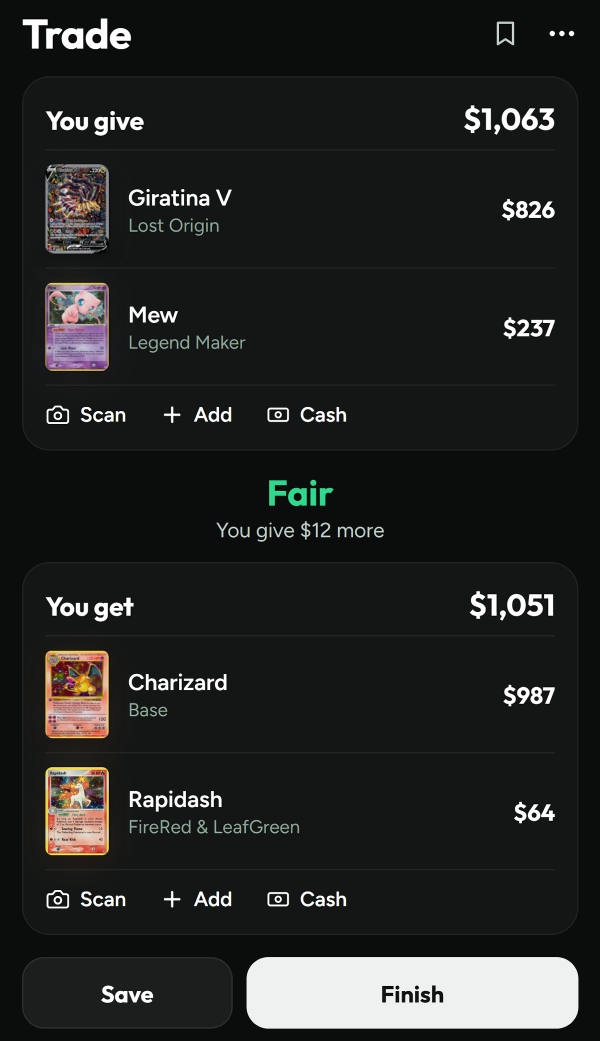
The Trade screen has You give and You get. Scan or add cards to each side, add cash if it helps, and read the verdict in the middle. Tap a card to set its printing, grade or condition. Finish saves the trade to your history. The trade guide covers each button, and fair trades at card shows covers the thinking.
Shows
Open Shows to see shows near you, with details via The Card Shop Finder. Open one and tap I'm going. You get a generated @name, and your Watchlist and trade stack become your list for that show. My spot lets you edit what you are hunting and bringing, set a budget, add notes and turn on reminders. Get ready saves it for a hall with no signal.
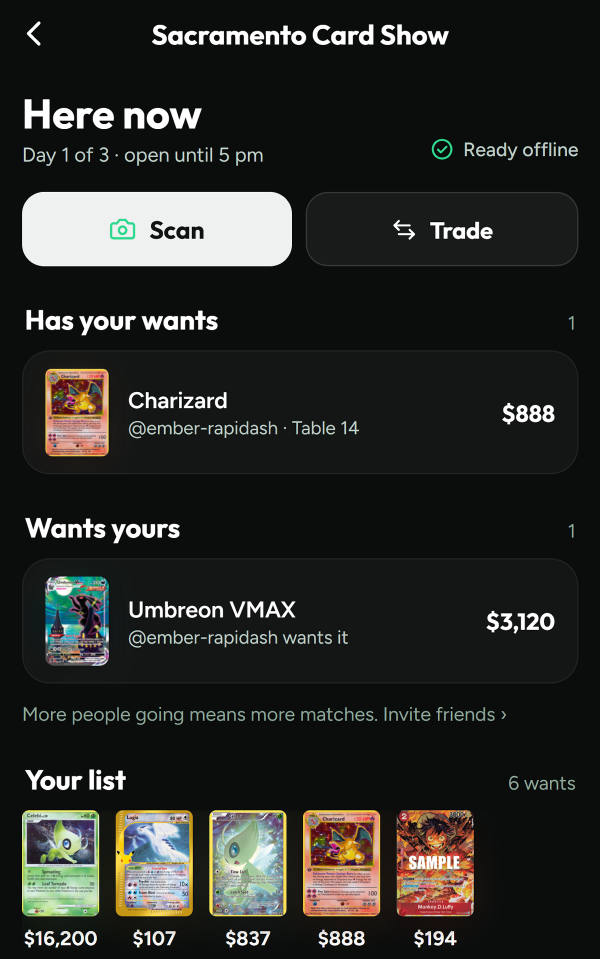
On show day, the show opens to Here now: Has your wants shows who has a card from your list and at which table, Wants yours shows who is hunting a card you brought, and At this show lists every card people going have put up. After the show you get a short recap of your deals.
Selling at shows
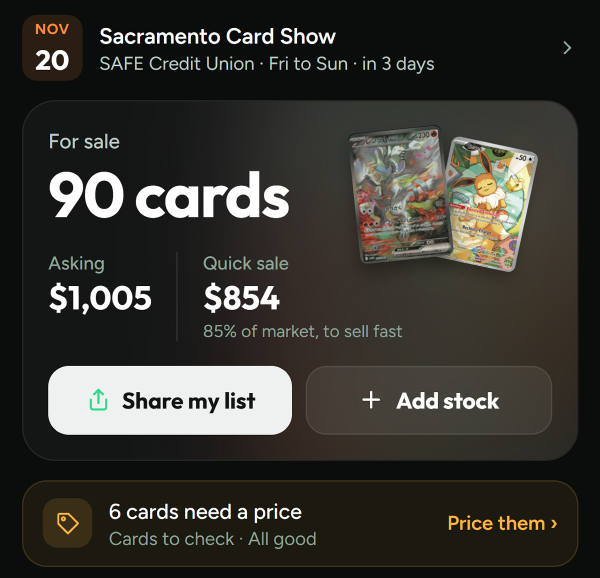
Vendors get the Vendor Desk: stock for sale with its asking total, the cards that still need a price, and Share my list for a list buyers can open. At a show, your spot can use that list so people going see it live. The guide on how to price your table covers the pricing side.
Getting started, step by step
1. Scan a card
Tap Scan and point the camera at a card or a slab. Bartr finds the card and shows a dated price for that exact printing and grade.
2. Add cards to your Watchlist
For cards you want to buy or sell, set a target price. The list sorts so the cards closest to your price come first.
3. Check a trade
Open Trade, add the cards you give and the cards you get, and add cash if needed. The verdict says whether it is fair.
4. Go to a show
Open Shows, pick a show and tap I’m going. Your wants and trade stack go up under a generated @name.
5. Use it on show day
Open the show to see Here now: who has your wants, who wants yours, and At this show for everything people have listed.
Coming later
Making offers to people at a show, signing in, and a map on the show page are coming in a later version of the app. Until then, Has your wants tells you who to go and see.
Quick answers
What does Bartr do?
It scans and prices trading cards, checks whether a trade is fair, keeps a Watchlist of cards you want to buy or sell, and helps you find people with your cards at a card show.
Does Bartr show my real name at a show?
No. Going to a show gives you a generated @name. Other people going see that name and your lists, never your name or contact details, and you can stop going at any time.
Which card games does Bartr work with?
Pokémon in English and Japanese, and One Piece. This site also has price pages for Riftbound.
Can I make offers to people at a show in Bartr?
Not yet. Offers at shows, sign in and a show map are coming in a later update. Today you can see who has your wants and at which table, and go and talk to them.
Look up a card on the Pokémon card price pages or the One Piece card price pages, and read how Bartr prices cards. Bartr is an information tool, not financial advice.
Every screen on this page is from the app, shown with sample cards. Open it on your own phone and start with one scan.
Get the app, or try the trade calculator in your browser first. Neither needs an account.